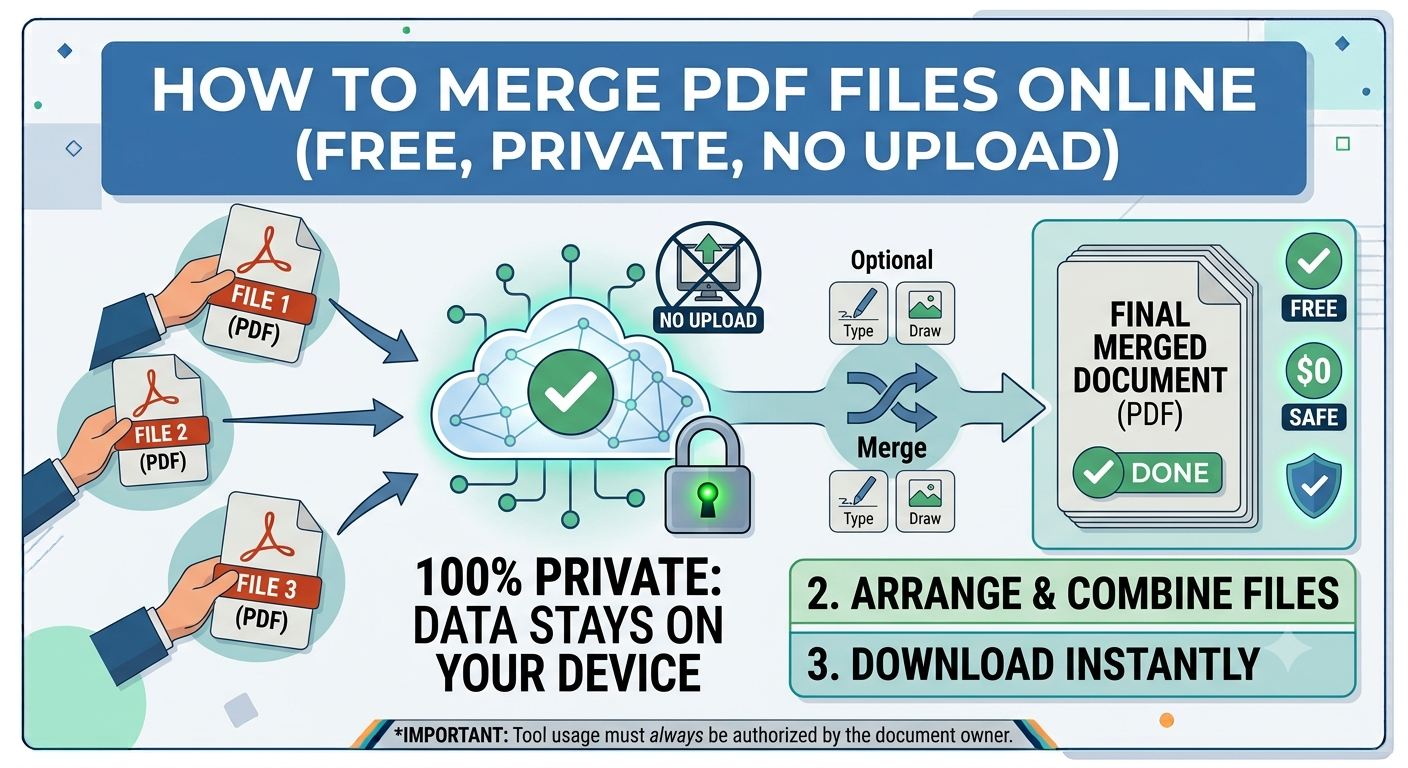
How to Merge PDF Files Online (Free, Private, No Upload)
If you want to merge PDF files online, there are now several free tools that let you combine documents in seconds without installing software or uploading sensitive data to unsafe servers.
Why merging in your browser matters
When PDFPuddle merges your PDFs, the entire operation happens inside your browser using pdf-lib, an open-source JavaScript library that reads and writes PDF files locally. Nothing leaves your device — not the source files, not the merged output, not even file metadata. There's no server-side queue and no temporary disk storage to worry about.
Step-by-step: merging multiple PDFs
Open the Merge PDF tool, drop your files into the upload zone (or click to browse), and you'll see them appear as draggable cards. Drag the cards to set the order you want, then click Merge PDFs. The resulting file downloads instantly. There's no upload progress bar because there's no upload.
Tips for clean merges
If you're combining files with different page sizes, the output will preserve each page's original dimensions — so a Letter-size cover page followed by A4 chapters will show both sizes. If you want consistent sizing, run each input through a Word or image converter first to standardize. For very large merges (50+ files), give your browser a moment to allocate RAM; PDFPuddle doesn't pre-load anything until you click Merge.
When merging isn't enough
If you also need to remove pages, reorder within a single source, or extract specific ranges, use Organize PDF or Split PDF before merging. Many workflows chain these together: split → organize → merge.